
Why Inventory Tracking Matters
Enabling inventory tracking in QuickBooks Online automatically updates inventory and calculates Cost of Goods Sold (COGS) with every sale. Without it, QuickBooks can't track item costs, resulting in inaccurate COGS, gross profit, and financial reports.
Klavena Sync Options
- Without Inventory Tracking: All sales and refunds sync to a single non-inventory item called "Product."
- With Inventory Tracking: Each transaction syncs to its matching QuickBooks inventory item, automatically updating stock and COGS.
How COGS Is Calculated
QuickBooks Online uses the First-In, First-Out (FIFO) method, assigning the cost of the oldest available inventory to each sale. Klavena syncs sales receipts, while you record inventory purchases in QuickBooks so FIFO can calculate costs correctly.
Inventory tracking requires:
- QuickBooks Online Plus or Advanced
- Klavena Professional
Inventory tracking must be enabled separately for each integration.
How to Enable Inventory Tracking
STEP 1: Enable in Klavena
In the settings page of each integration, enable inventory tracking.
Navigate to Settings and Mappings.
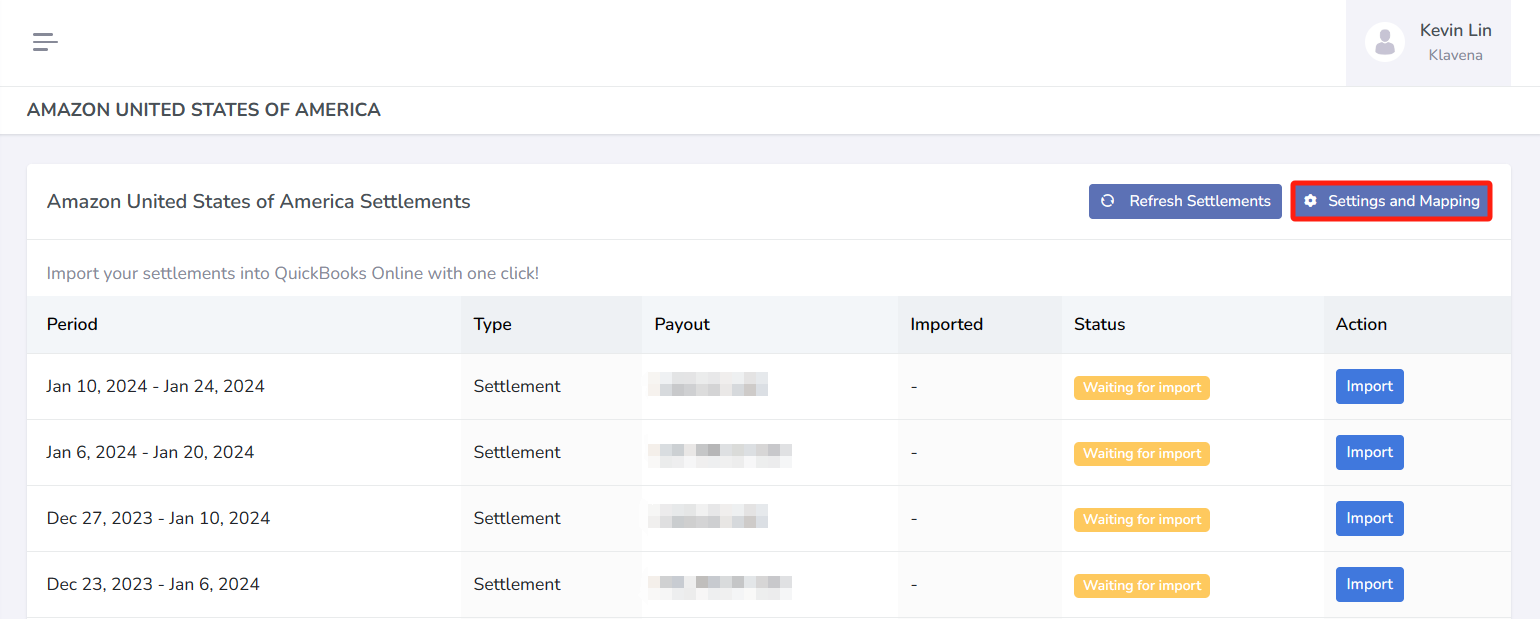
Click Enable Inventory Tracking.

STEP 2: Enable in QuickBooks Online
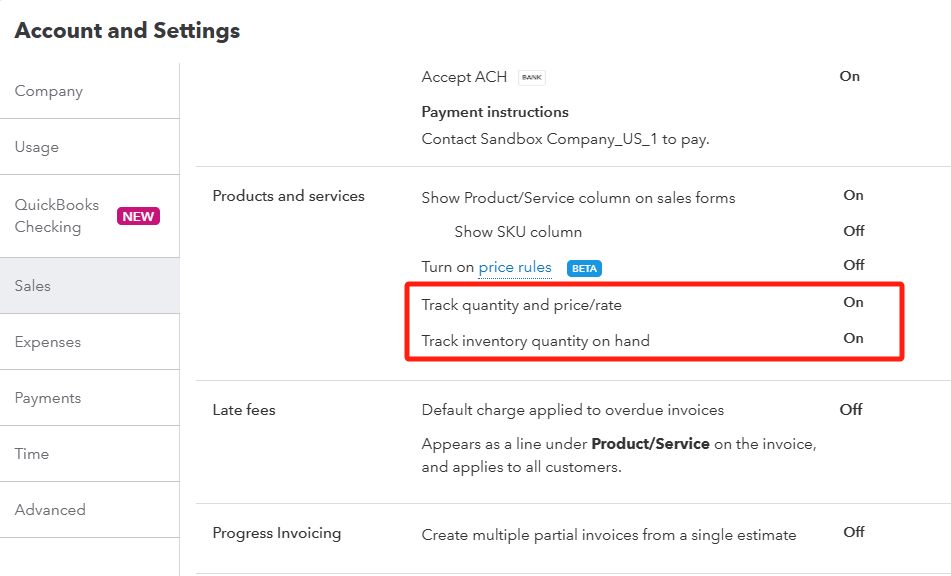
Go to QuickBooks → Settings → Account and Settings → Sales → and turn on Track quantity and price/rate and Track inventory quantity on hand
STEP 3: Mapping Error on Import
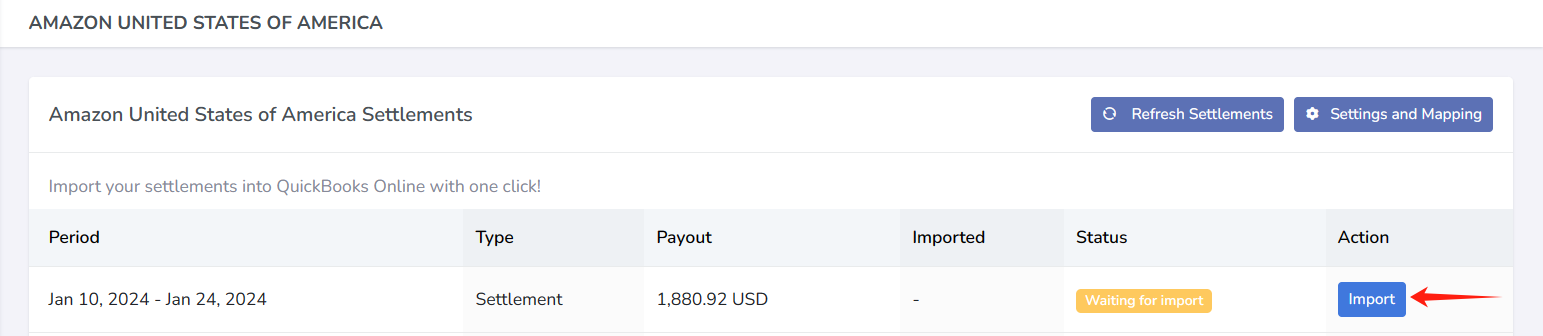
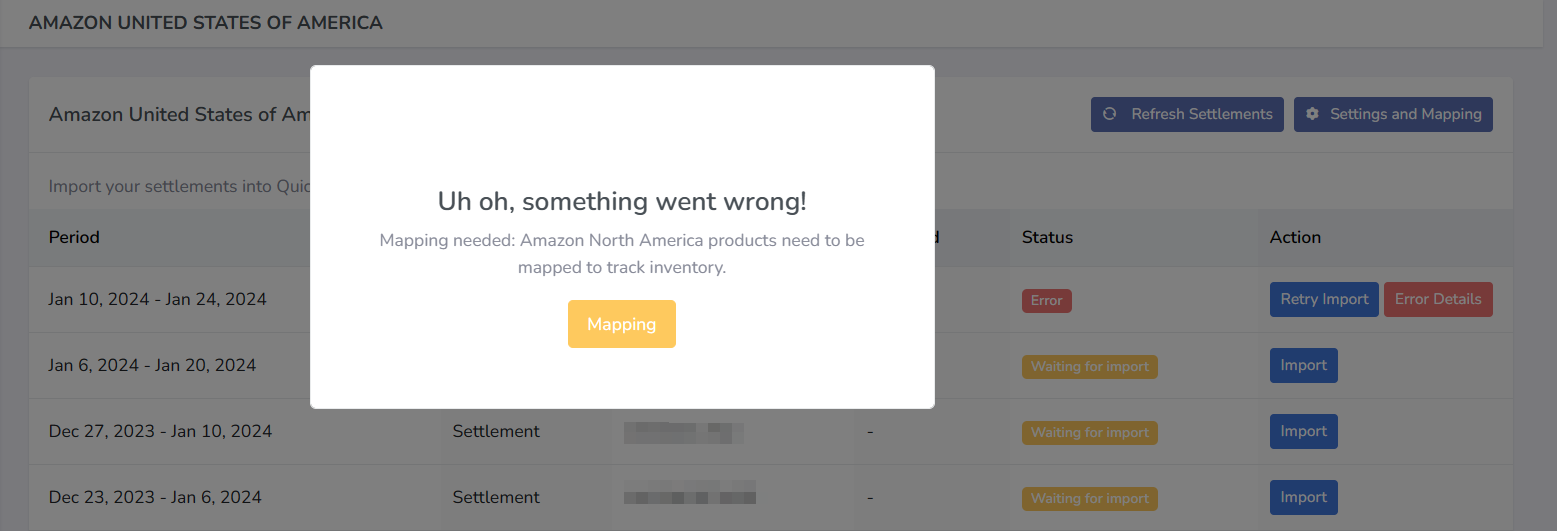
After enabling inventory tracking, your next settlement import may fail with a "mapping not found" error. This is expected until you map each sales channel product to its corresponding inventory item in QuickBooks.
STEP 4: Mapping Sales Channel Products to Inventory Items
- Create inventory items in QuickBooks (if not already created)
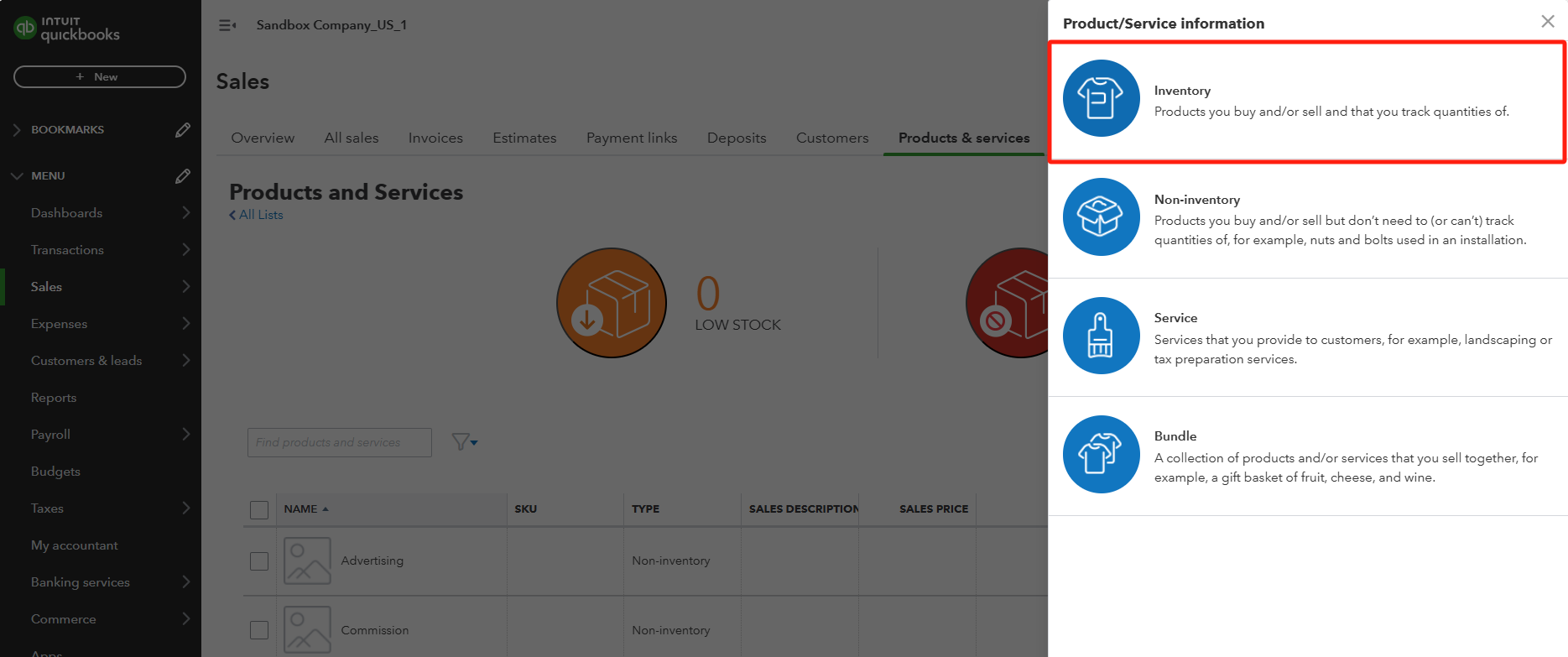
- Go to Products and Services.
- Click New and select Inventory.
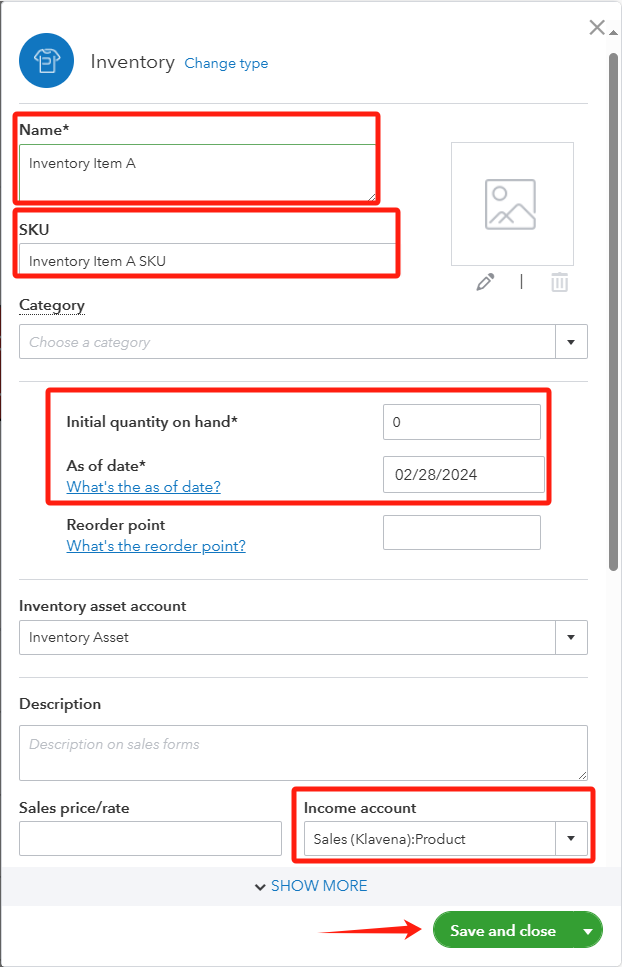
- Enter the product Name (mandatory) and SKU (optional)
- Enter an Initial quantity on hand and the As of date (must be before your earliest sale).
- Save the item.
- Map products in Klavena.
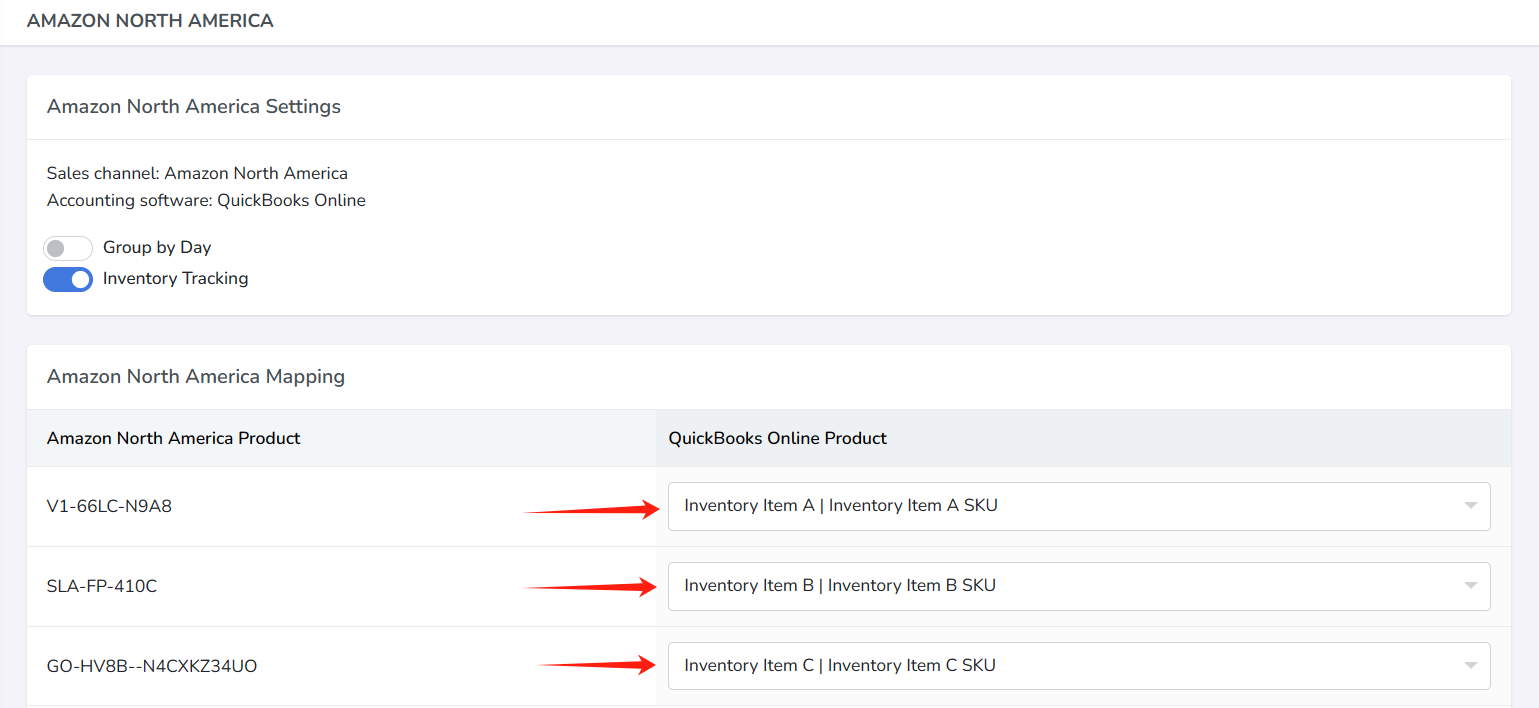
- Return to the Mapping tab in Klavena’s integration settings.
- Match each product from your sales channel to the corresponding inventory item.
Bundles and Multipacks (optional)
If you sell bundles (e.g., a gift set with multiple SKUs) or multipacks (e.g. multiple of a single sku), you can break the bundle or multipack into its individual components and map each one in Klavena.
Here are some examples of situations in which you would want to use this feature.
- You sell a candle gift pack, containing 2 red candles, 2 green candles, and 2 blue candles, and you want to track the inventory and calculate cost of goods sold based on the individual red, green, and blue candles.
- Instead of selling 1 bottle of shampoo, you sell a multipack of 3 bottles of shampoo together, and you want to track the inventory and calculate cost of goods sold based on the individual bottle of shampoo.
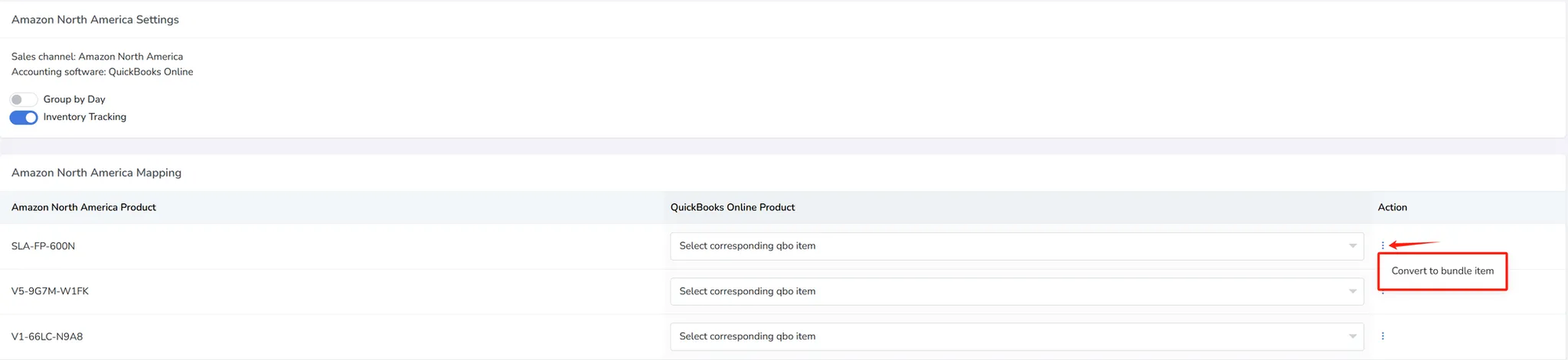
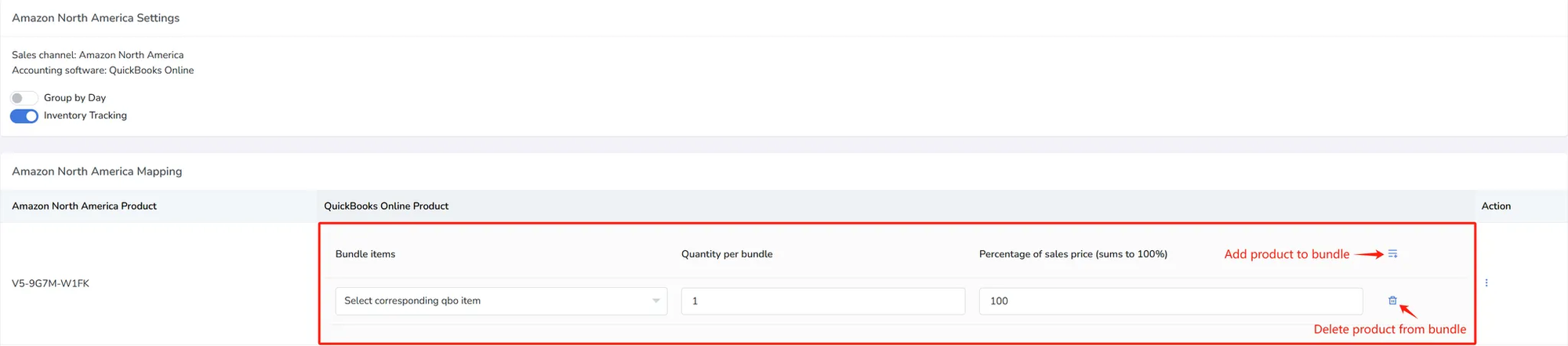
To convert a mapping entry into a bundle mapping entry, navigate to the action menu, and click on “Convert to bundle item”. Don’t worry, you can always convert back to the simple mapping by clicking the action button “Convert to inventory item”.
Next, you need to enter the following for your bundle or multipack:
- Bundle Item: The item within your bundle
- Quantity per bundle: Number of this item within your bundle
- Percentage of sales price: How much of the sales price should be allocated to this product within the bundle. This value must sum to 100 for all products.
Note: Percentage of cost is the total sales price allocated to that bundle item, not the unit sales price. For example: If 50% of sales price is allocated to this item, then no matter what the quantity per bundle is, that bundle item still gets 50% of sales price.
To add or remove objects from the bundle, you may click on the add or delete buttons on the right column.
STEP 5: Re-import the Settlement
After completing all mappings:
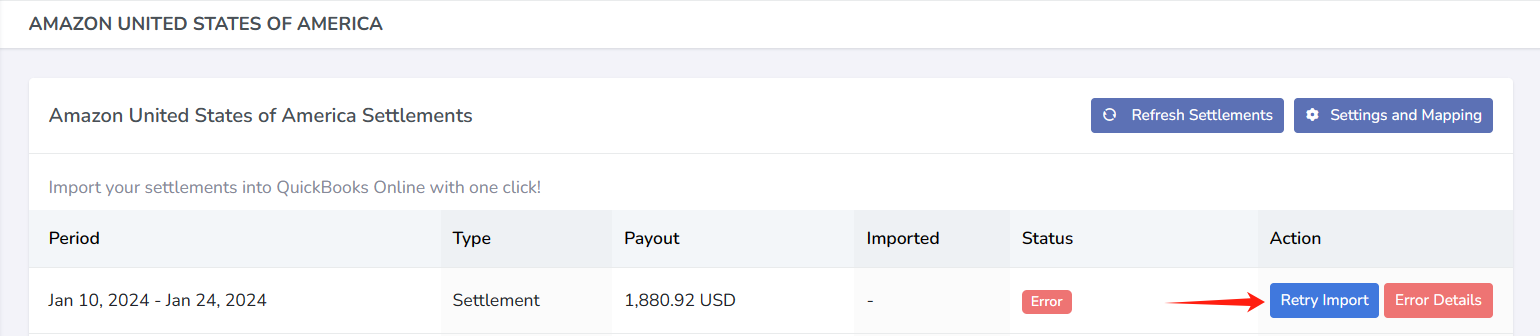
- Retry the previously failed import.
- Klavena will post sales receipts using the correct inventory items.
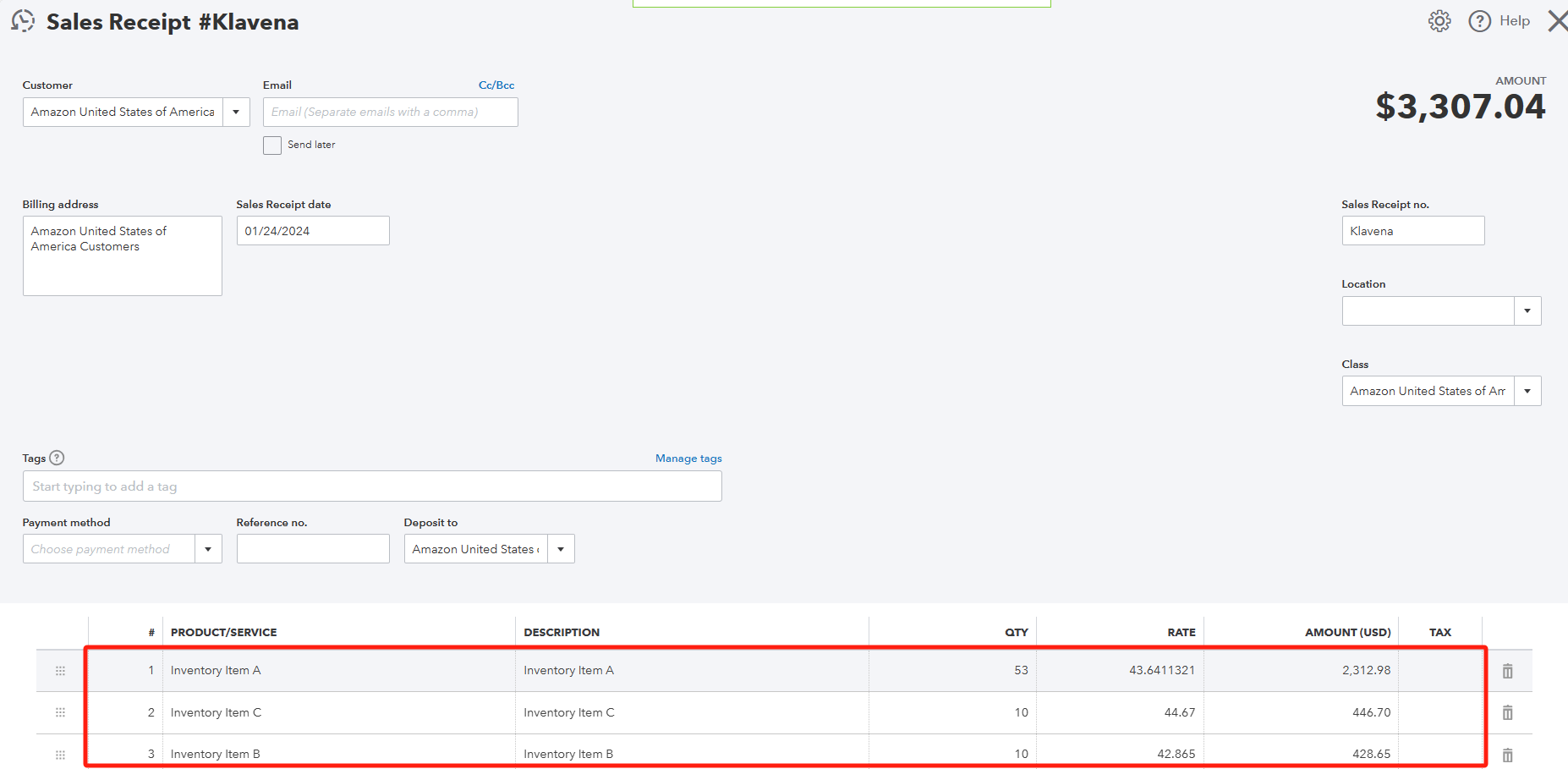
- QuickBooks will automatically reduce inventory and calculate COGS per sale.
STEP 6: Verifying Accuracy
After import:
- Open a recent sales receipt in QuickBooks to confirm it includes inventory items, not the generic "Product."
- Check your Profit & Loss and Balance Sheet reports — you should now see proper COGS and updated inventory asset balances.
STEP 7: Inventory Tracking Summary
- Inventory tracking is required for proper COGS reporting in QuickBooks.
- Klavena maps each transaction to inventory items so QuickBooks can perform FIFO-based COGS calculation.
- Setup involves enabling inventory tracking, creating inventory items, and mapping them properly.
- Bundles are supported either as single items or component SKUs.
Congratulations!
- You've linked your first sales channel to QuickBooks Online and imported and reconciled your first settlement.
- You've categorized the sales data and matched the bank deposit in the bank transactions to ensure accurate financial reporting.
- You've also potentially set up inventory tracking to have a better picture your inventory levels and COGS
Great work!
Summary of Features:
- Multi-User CollaborationTeam Member Provisioning
- You can invite multiple users to your workspace. Administrators can assign access controls to team members for secure data management.
- API Key
- A unique secret code used to authenticate and authorize an application to access a service or platform. It acts like a password that identifies Klevana and allows it to communicate securely with the API.
- Group Transactions by day
- Combines all transactions from the same day into a single daily summary report instead of grouping them by settlement batches.
- Inventory Tracking
- Keeps track of inventory levels and calculates the Cost of Goods Sold (COGS) as items are purchased, sold, or adjusted.
- Mapping/Product Mapping
- Matches products from your sales channels to the correct products/items in QuickBooks Online (QBO).